Playbook · Claude Code × Google Ads
Connect Claude Code to Google Ads
Ask about your campaigns in plain English. Twelve steps for campaign data, six more if you also want keyword planning. Every screen shown, nothing private.
In one paragraph
To connect Claude Code to Google Ads, create a Google Ads manager account and copy its developer token, create a Google Cloud project, enable the Google Ads API, set up the consent screen and a Desktop OAuth client, keep the keys in a private file and sign in once. Explorer access is enough for campaign data. Keyword Planner needs Basic access, which needs a verified brand first.
- Time
- About 15 minutes, plus approval for part 2
- Cost
- Free. The API has no usage fee.
- You get
- Campaign answers and keyword data in Claude Code
Watch the walkthrough
About six minutes on YouTube, every click on screen, with a voice-over. Prefer reading? Every step is written out below.
 Watch on YouTube · 6 min
What you need
1
A Google Ads account
The account you advertise with. You will link it to a manager account.
2
A Google Cloud account
Free. It holds the API switch and the sign-in client.
3
Claude Code
It writes the small scripts, runs the sign-in and answers your questions.
Part 1 · campaign data · Explorer access
Connect Claude Code to Google Ads in 12 steps
- 1
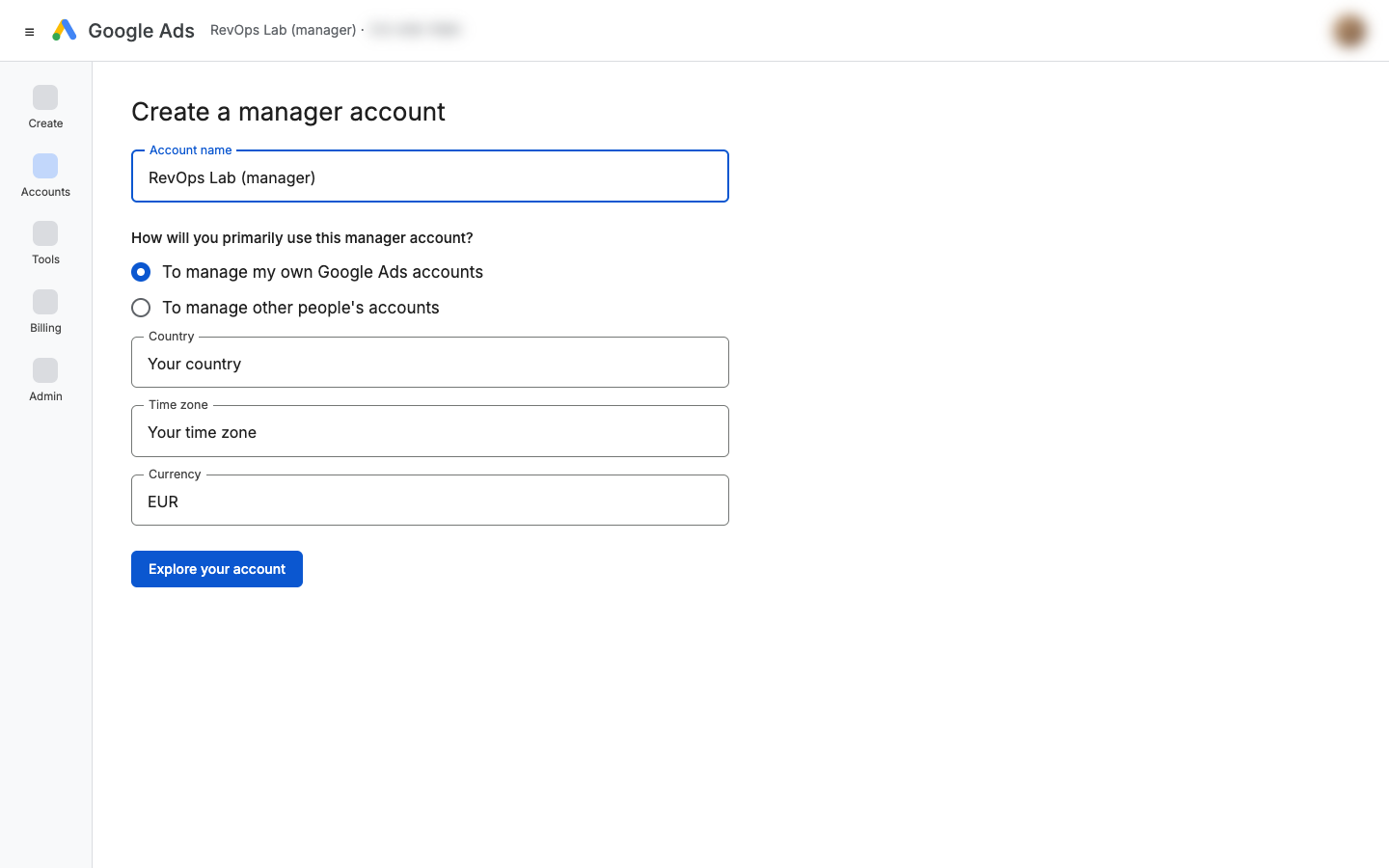
Create a Google Ads manager account
API access only lives in manager accounts. Go to the Google Ads manager accounts page, create a manager account and choose "To manage my own Google Ads accounts".
- 2
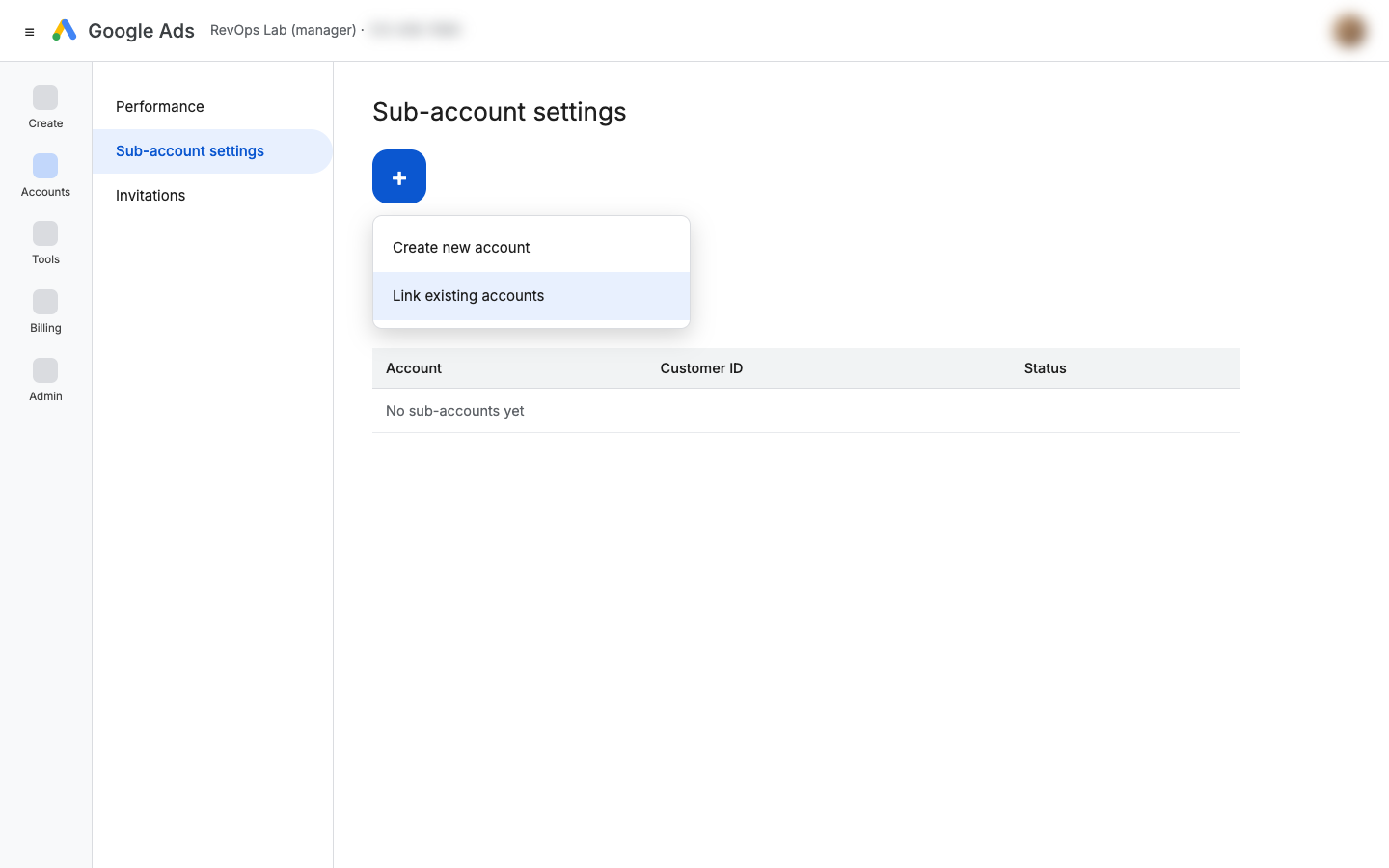
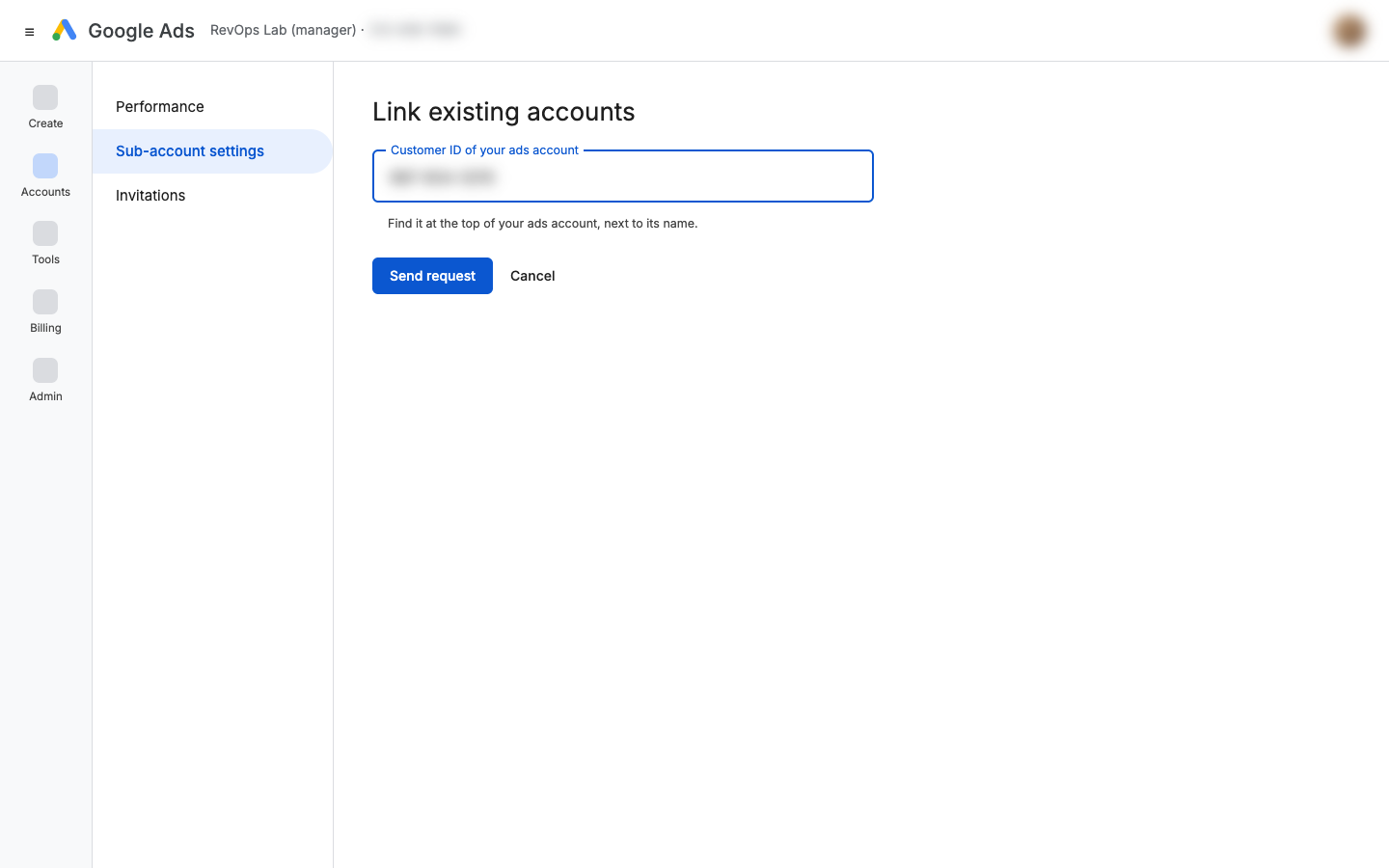
Link your ads account to the manager account
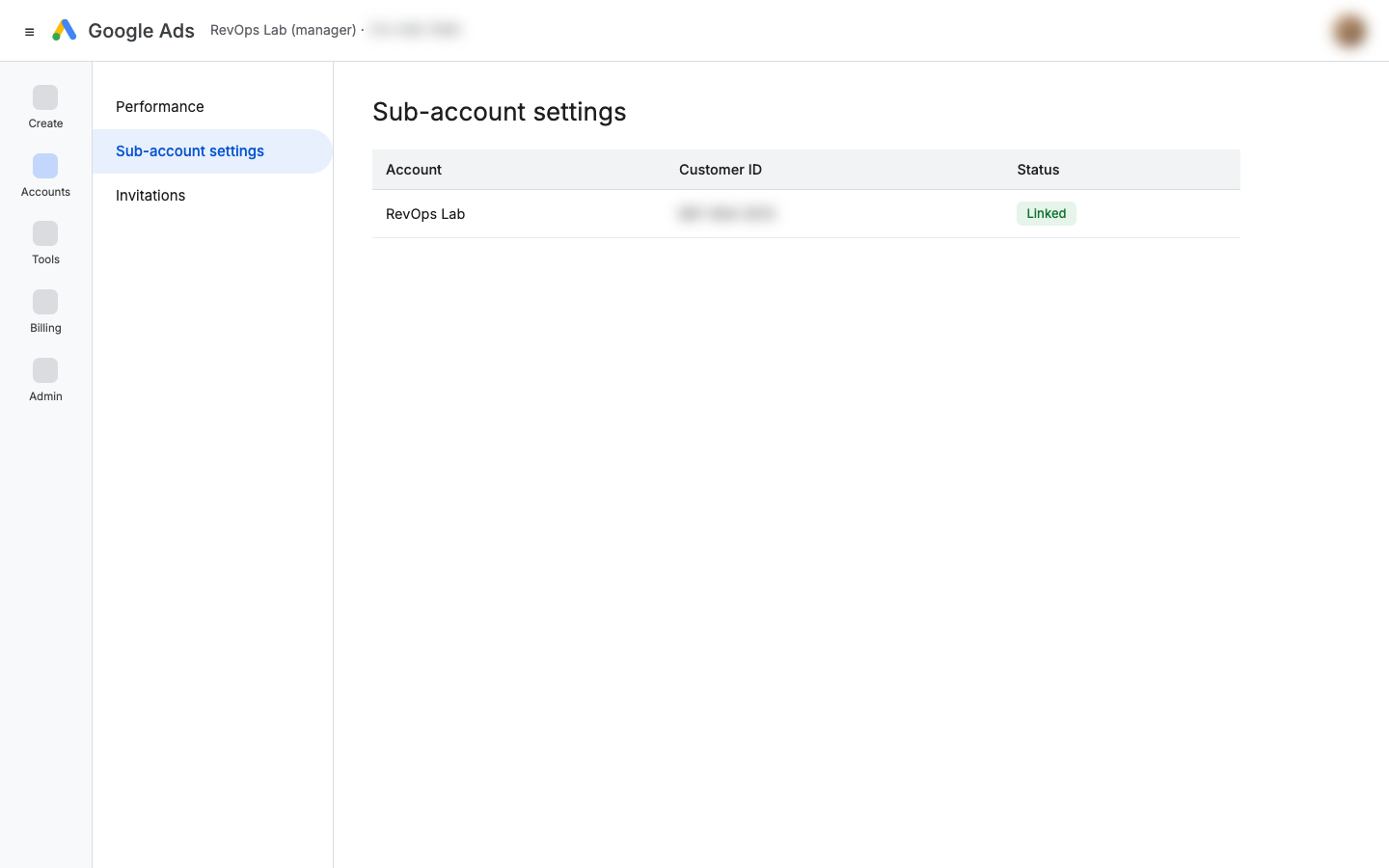
In the manager account, open Accounts in the left menu, then Sub-account settings. Click the blue + button and choose Link existing accounts. Enter your ads account’s customer ID (shown at the top of that account) and click Send request.
- 3
Switch to your ads account
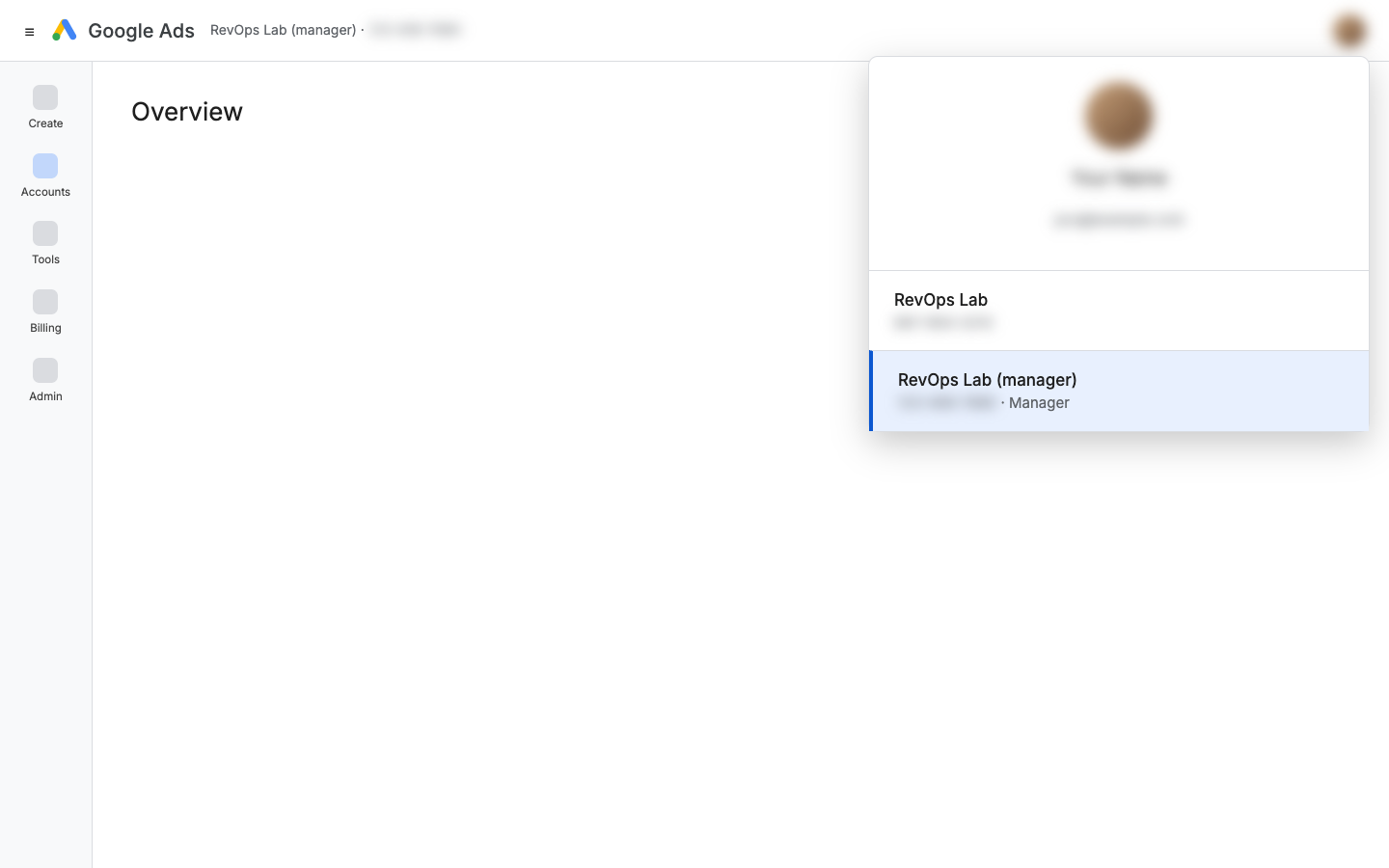
Click your profile picture at the top right. Both accounts are listed: the manager account is labelled Manager. Pick the other one.
- 4
Accept the link request
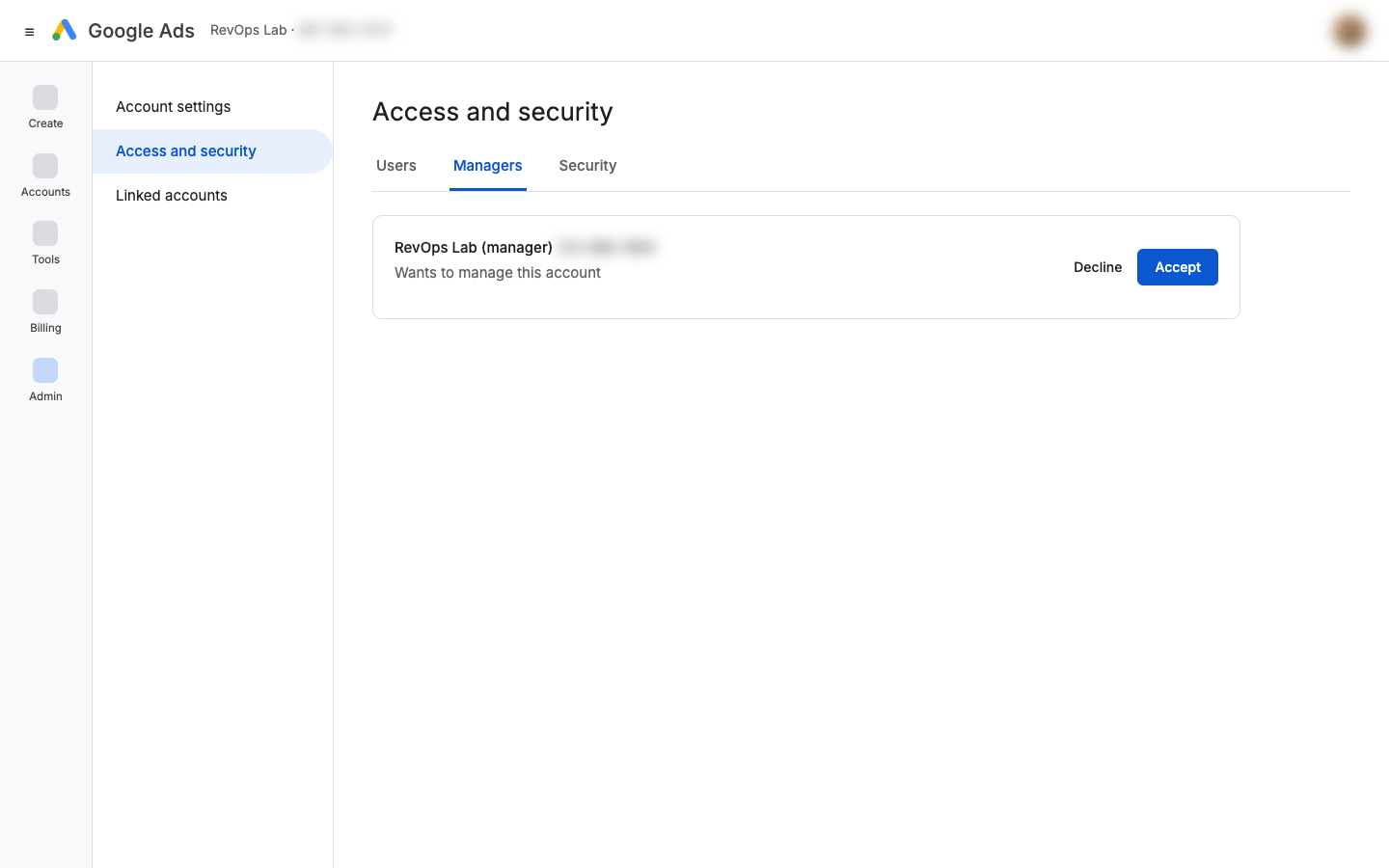
In your ads account, open Admin, then Access and security, then the Managers tab, and click Accept. Back in the manager account, the status now says Linked.
- 5
Copy your developer token and check the access level
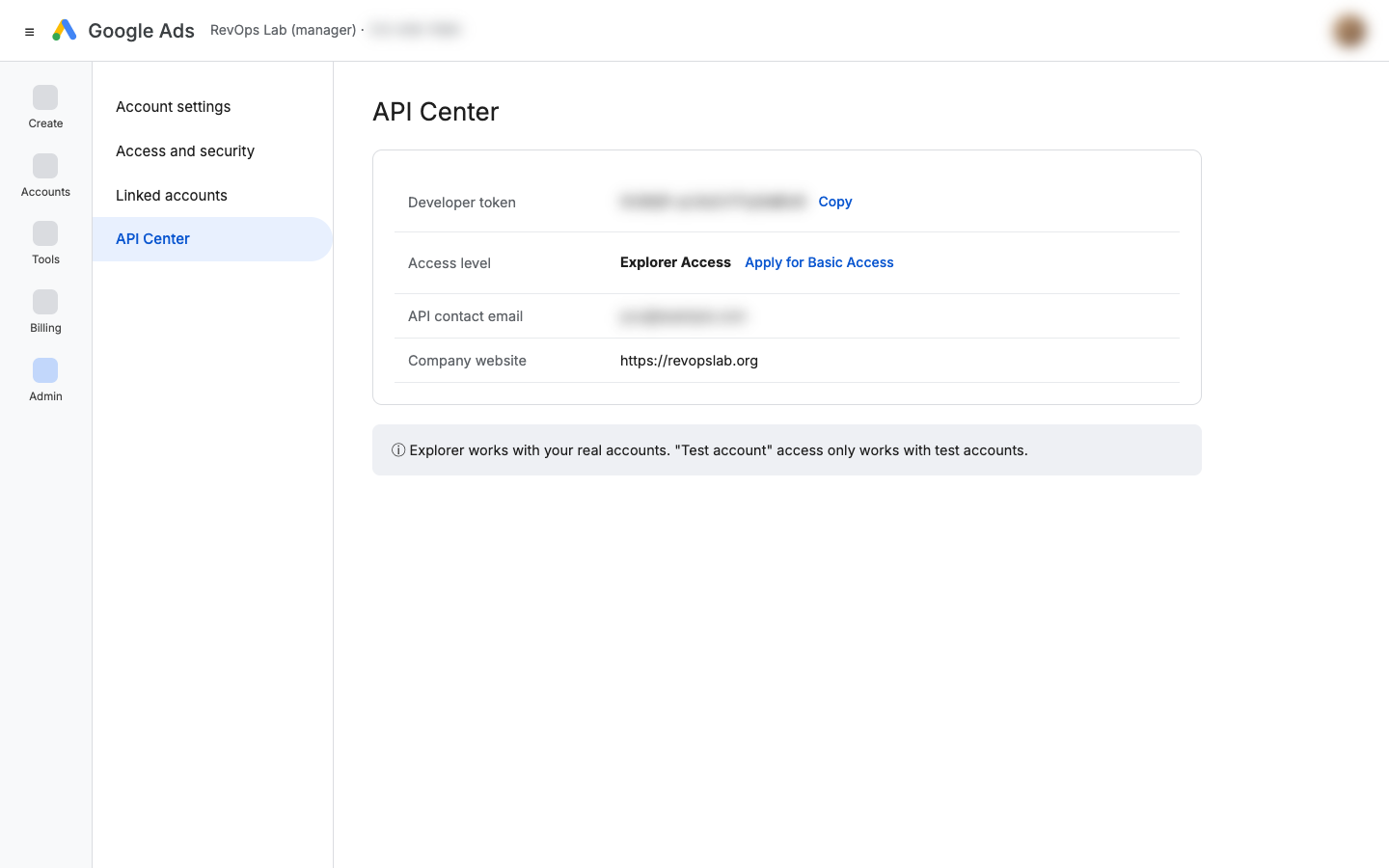
Switch back to the manager account. Open Admin, then API Center. Fill in the short form (your website and a contact email you read) and accept the terms. Copy the developer token, and check the access level: it should say Explorer. Test account access only works with test accounts, not your real campaigns.
- 6
Create and select a Google Cloud project
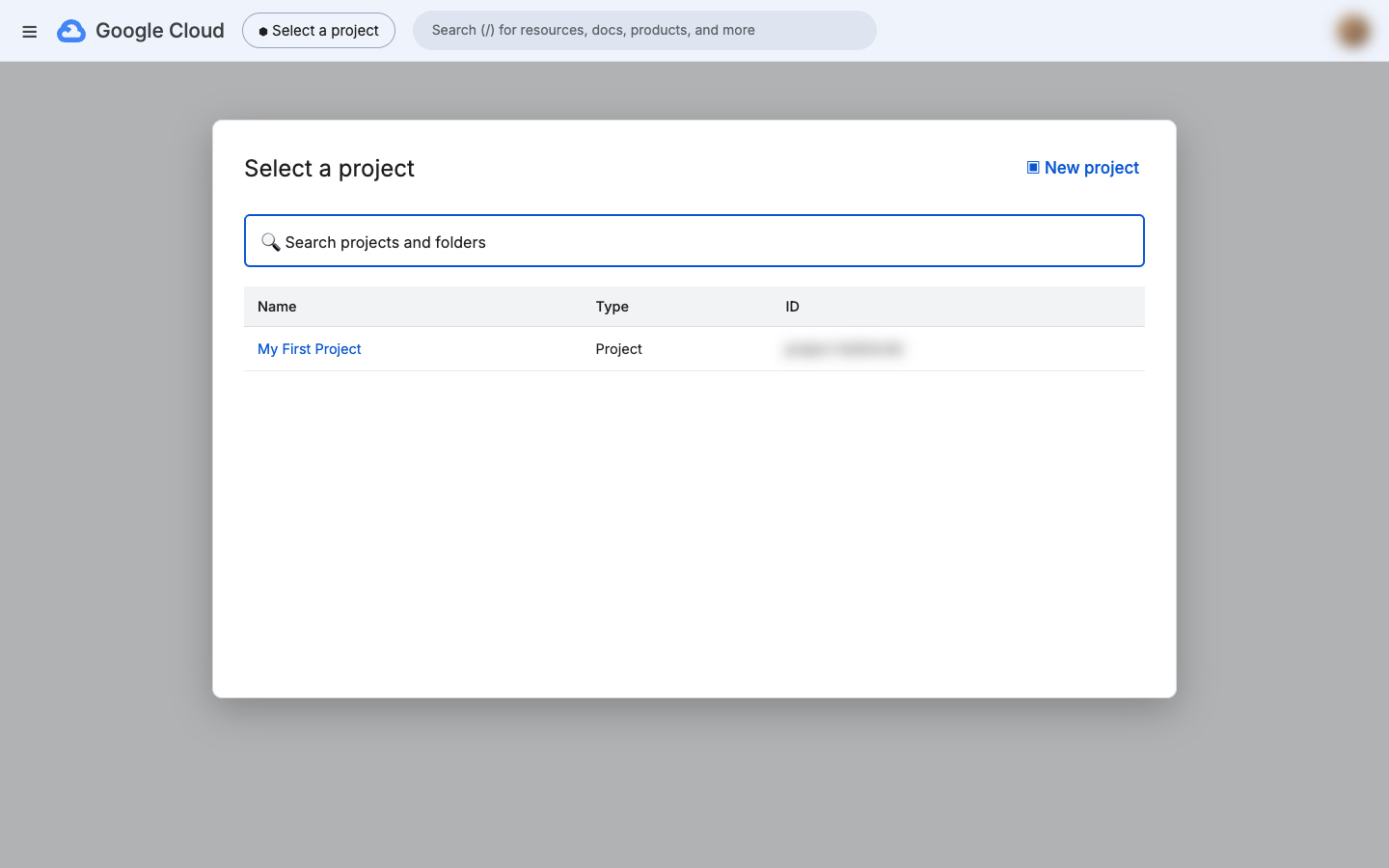
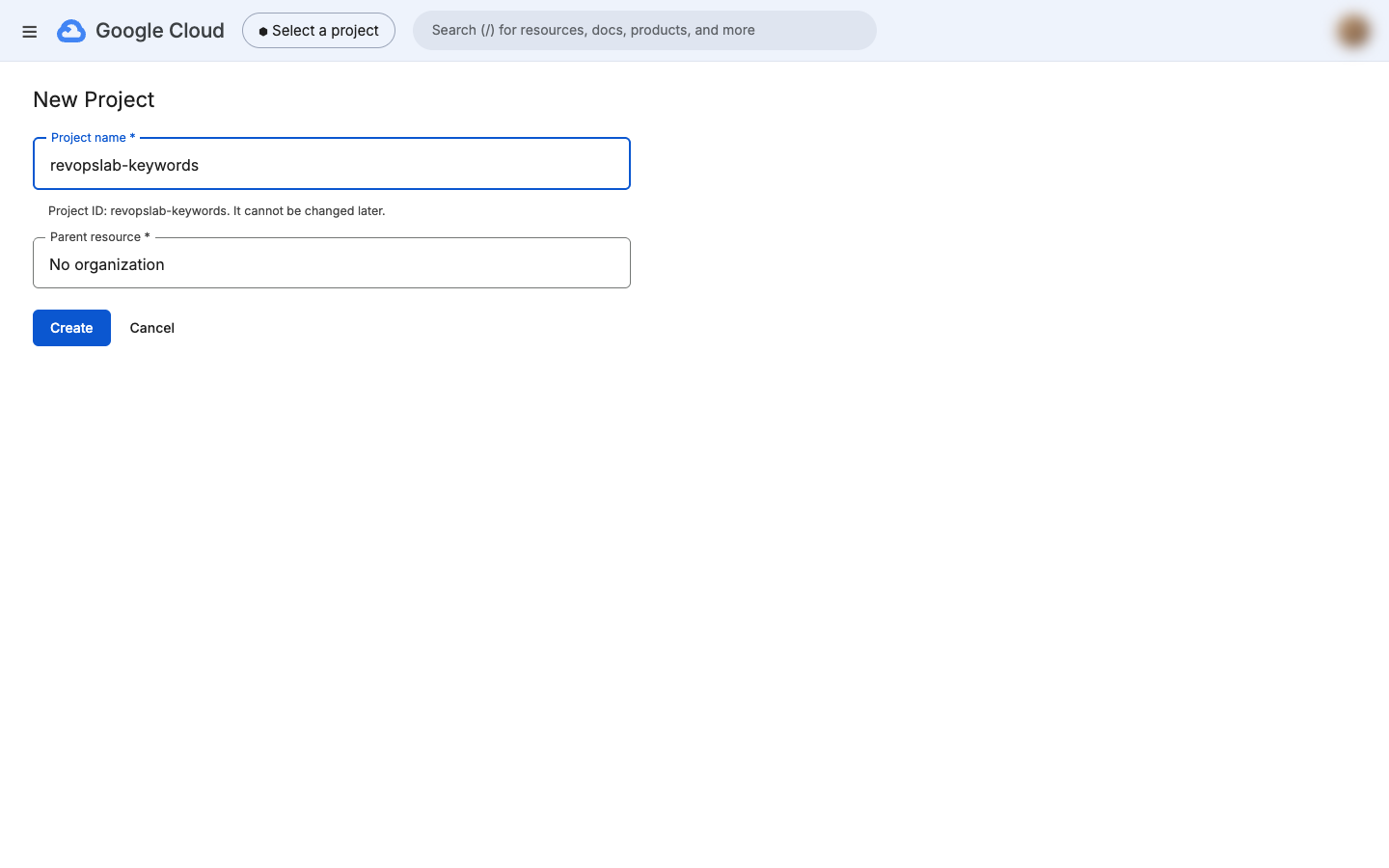
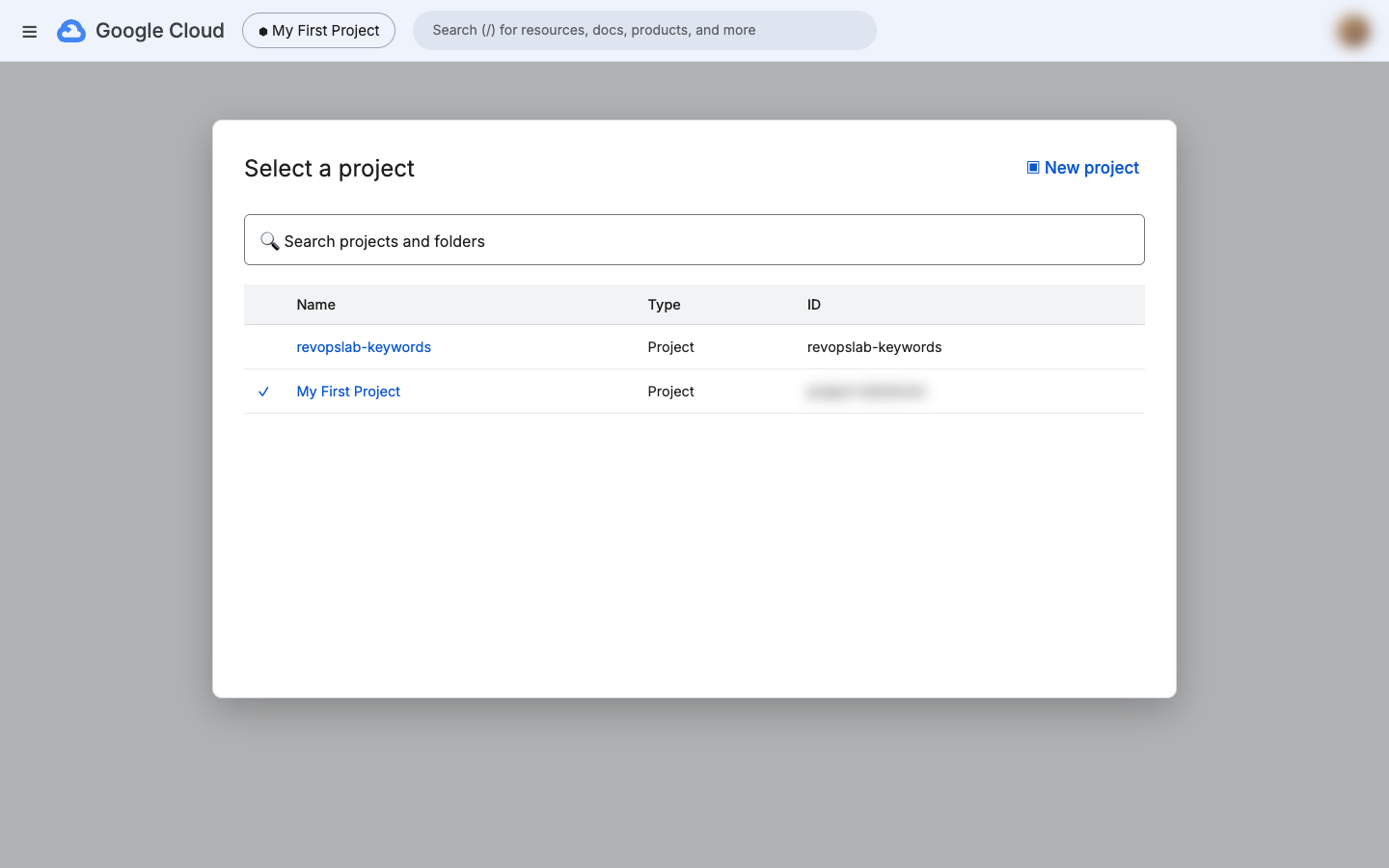
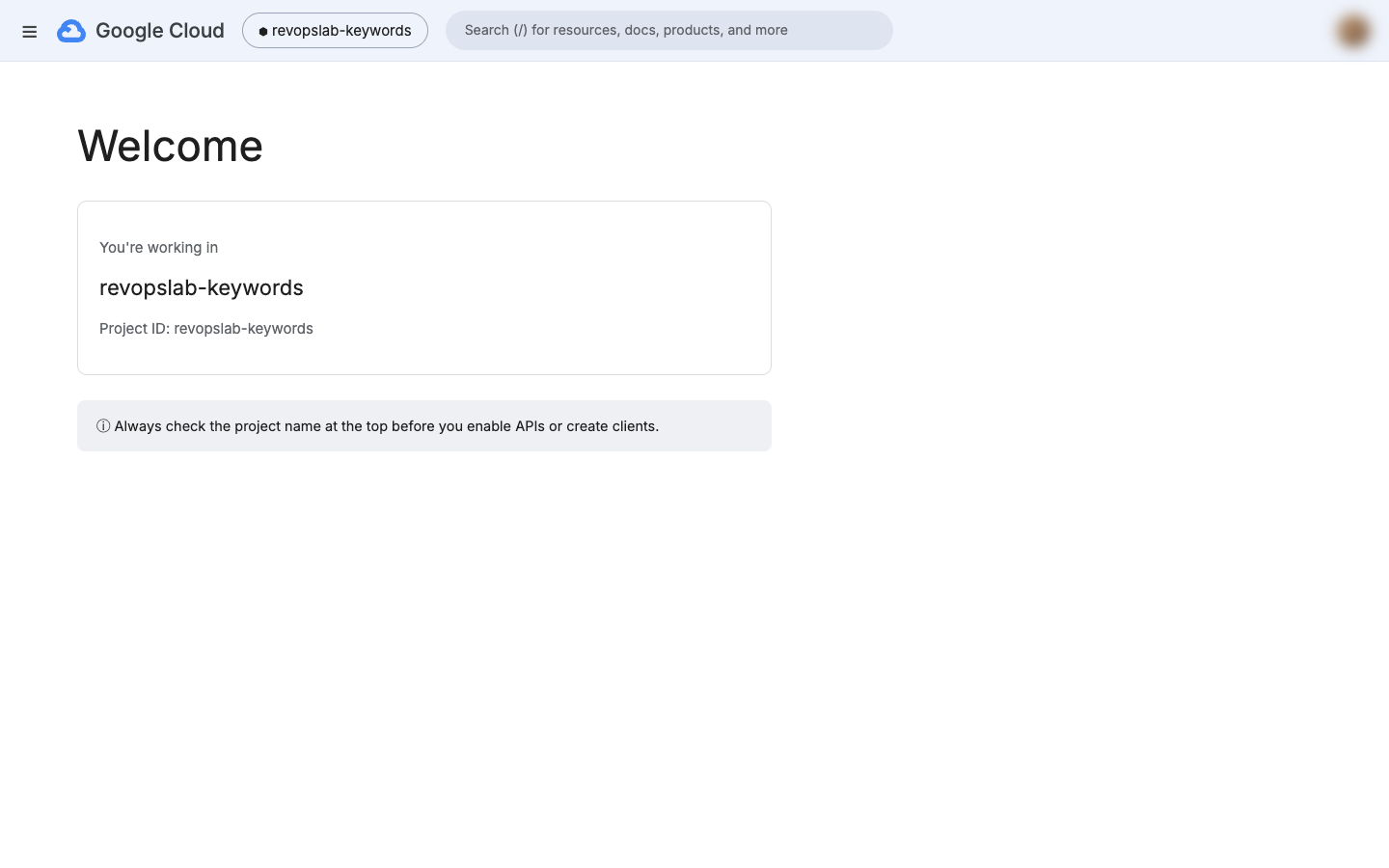
Open console.cloud.google.com. If it is your first time, start the free trial: it asks for a card to confirm it is you, but nothing is charged unless you upgrade. Click the project picker at the top, choose New project, name it and click Create. Google also creates "My First Project", so open the picker again and select your new project. Check its name shows at the top before you continue.
- 7
Enable the Google Ads API
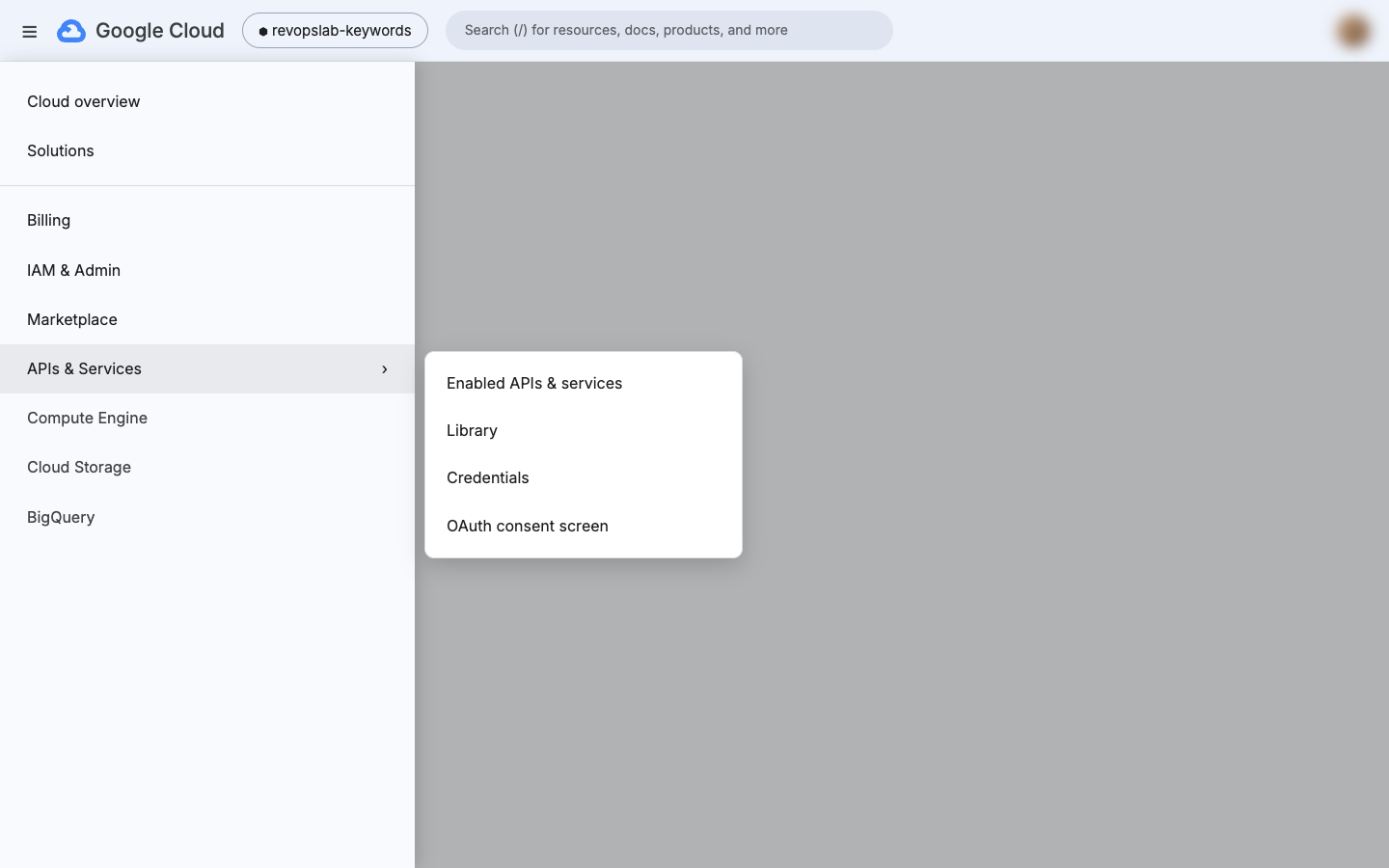
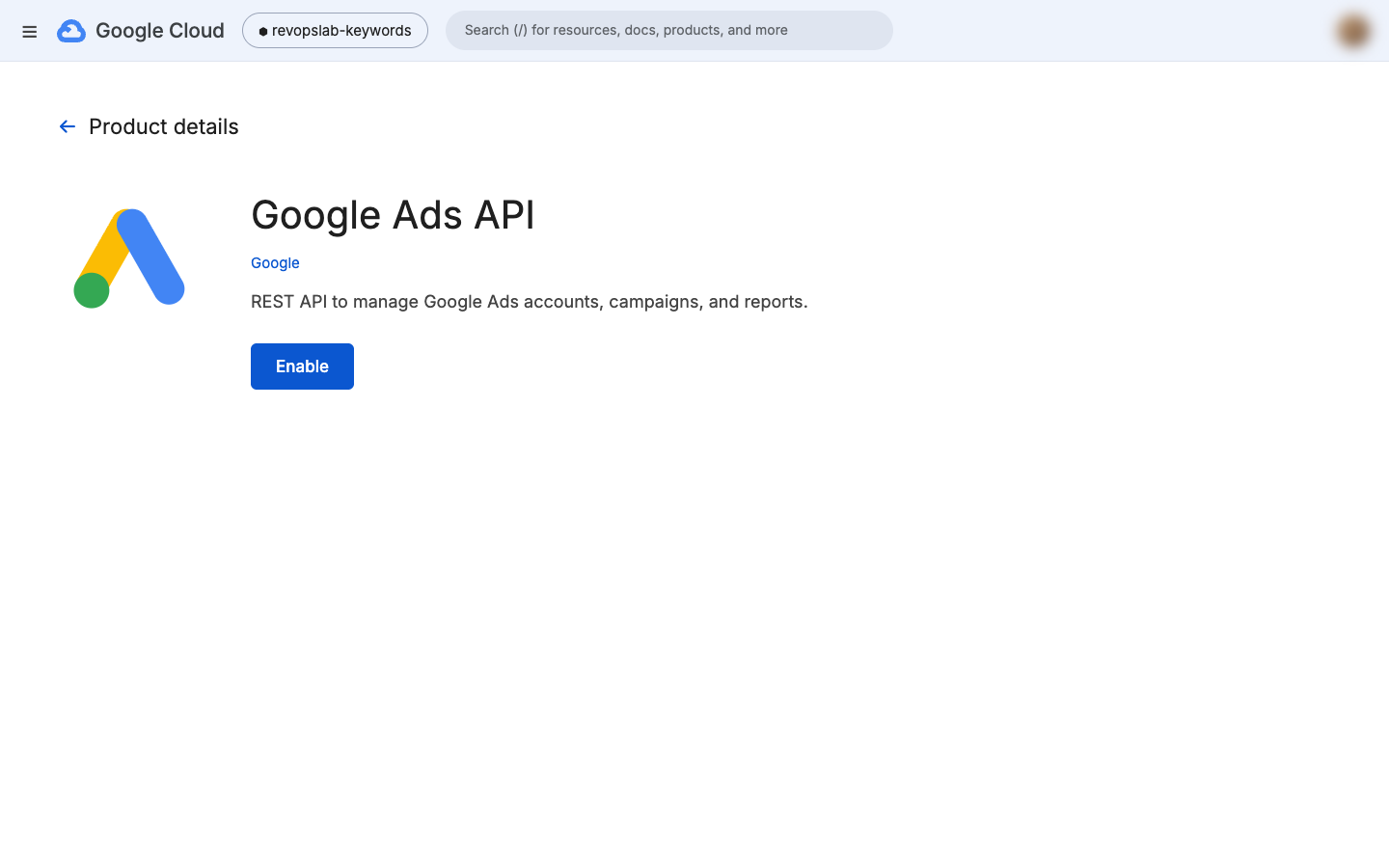
Open the menu at the top left, then APIs & Services, then Library. Search for "Google Ads API", open it and click Enable.
- 8
Set up the consent screen and add yourself as a test user
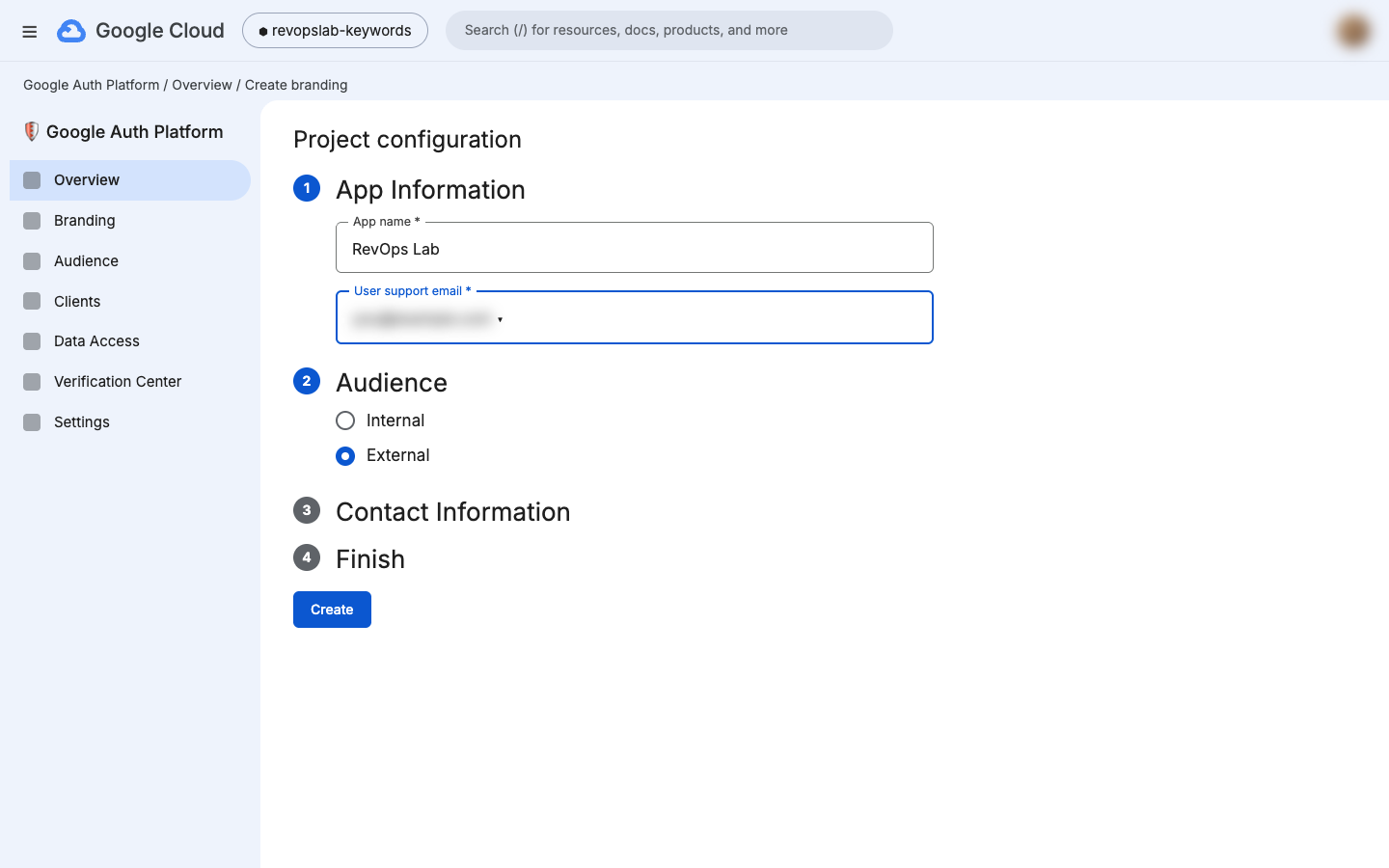
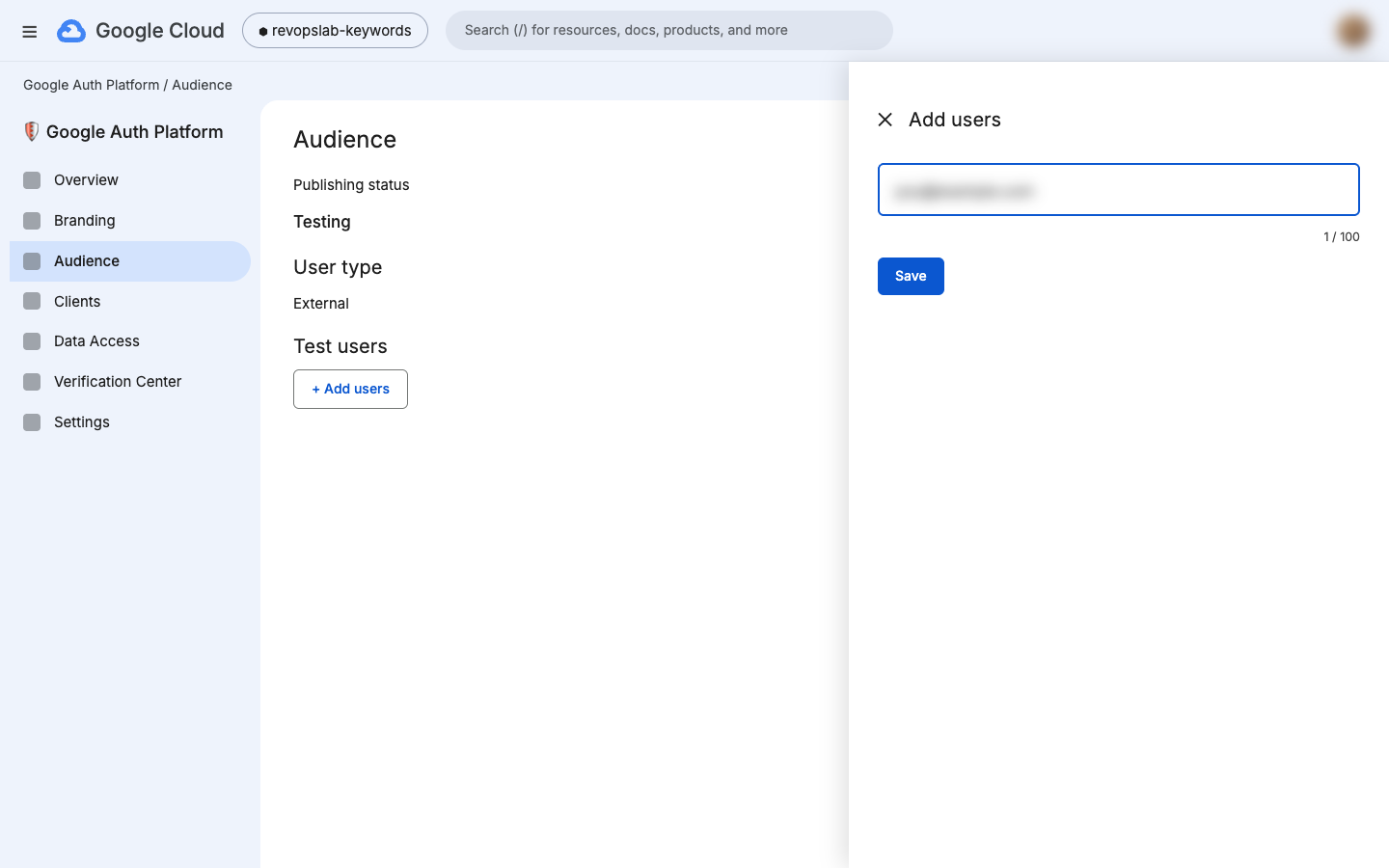
Under APIs & Services, open OAuth consent screen and click Get started. Add an app name and your support email, choose External, add a contact email and click Create. You land on Audience: click Add users and add your own Google account as a test user.
- 9
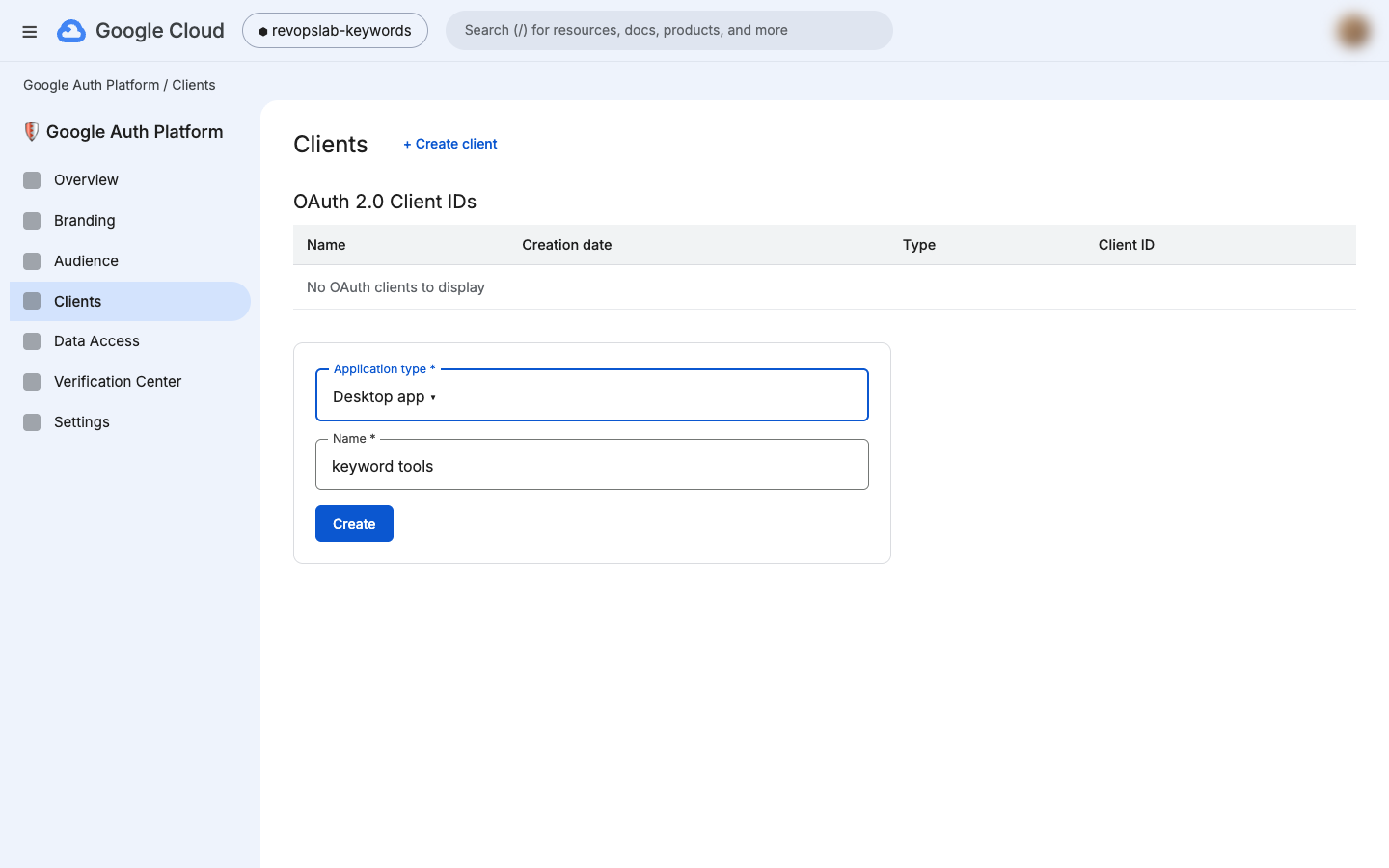
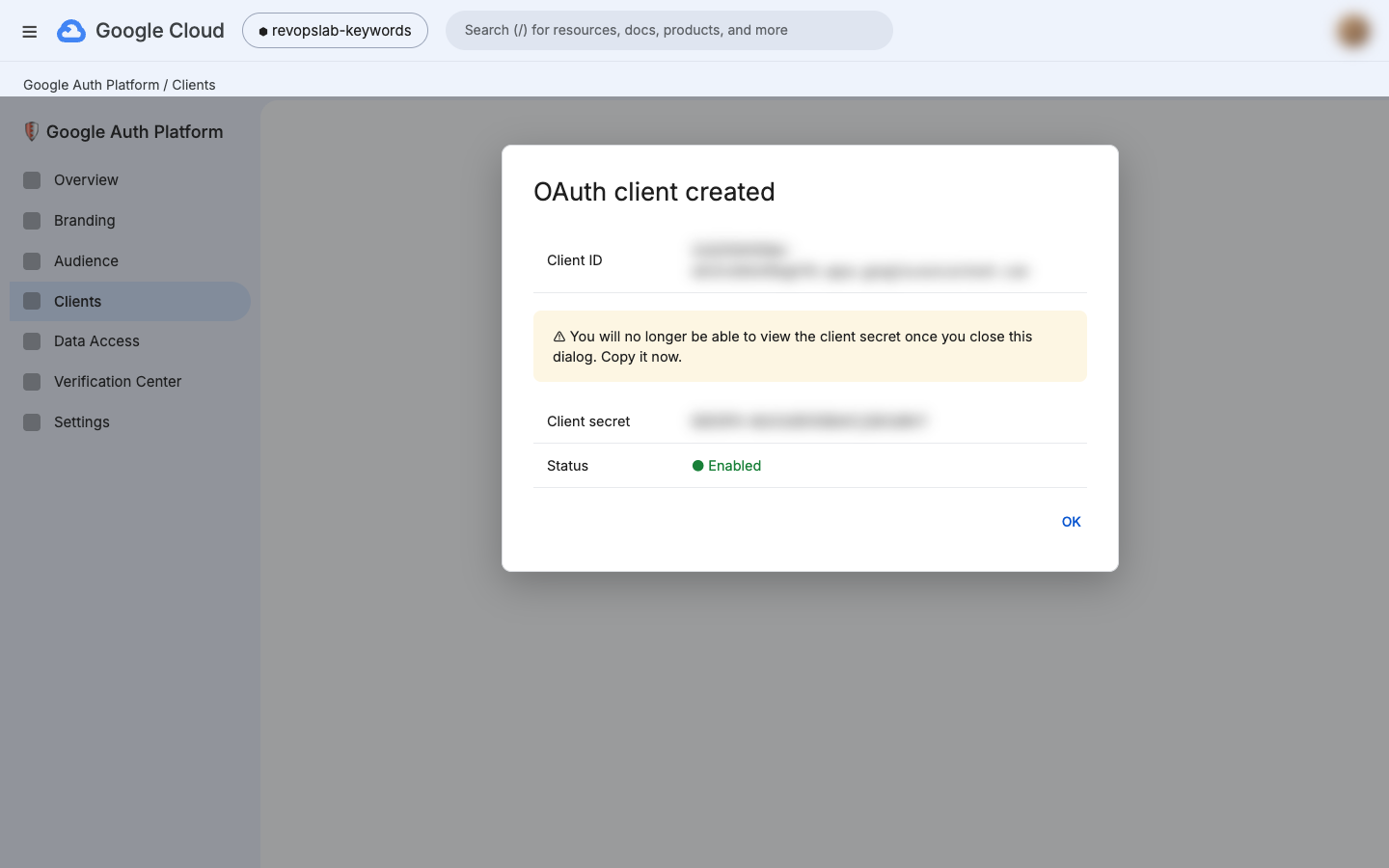
Create a Desktop OAuth client
Open Clients and click Create client. Choose Desktop app and give it a name. Copy the client ID and the client secret right away: Google only shows the secret once.
- 10
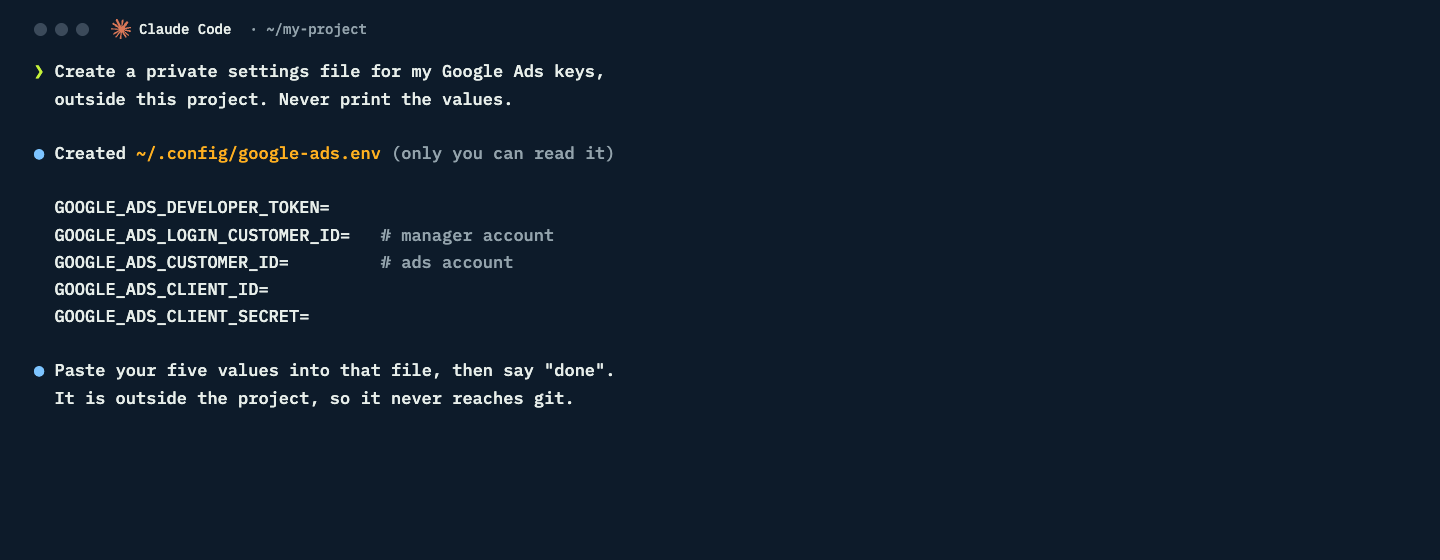
Keep the keys in a private file
Ask Claude Code to create a private settings file outside your project. Open it and paste in five values: developer token, manager account ID, ads account ID, client ID and client secret. Keep keys out of the chat, out of your code and out of any repository.
- 11
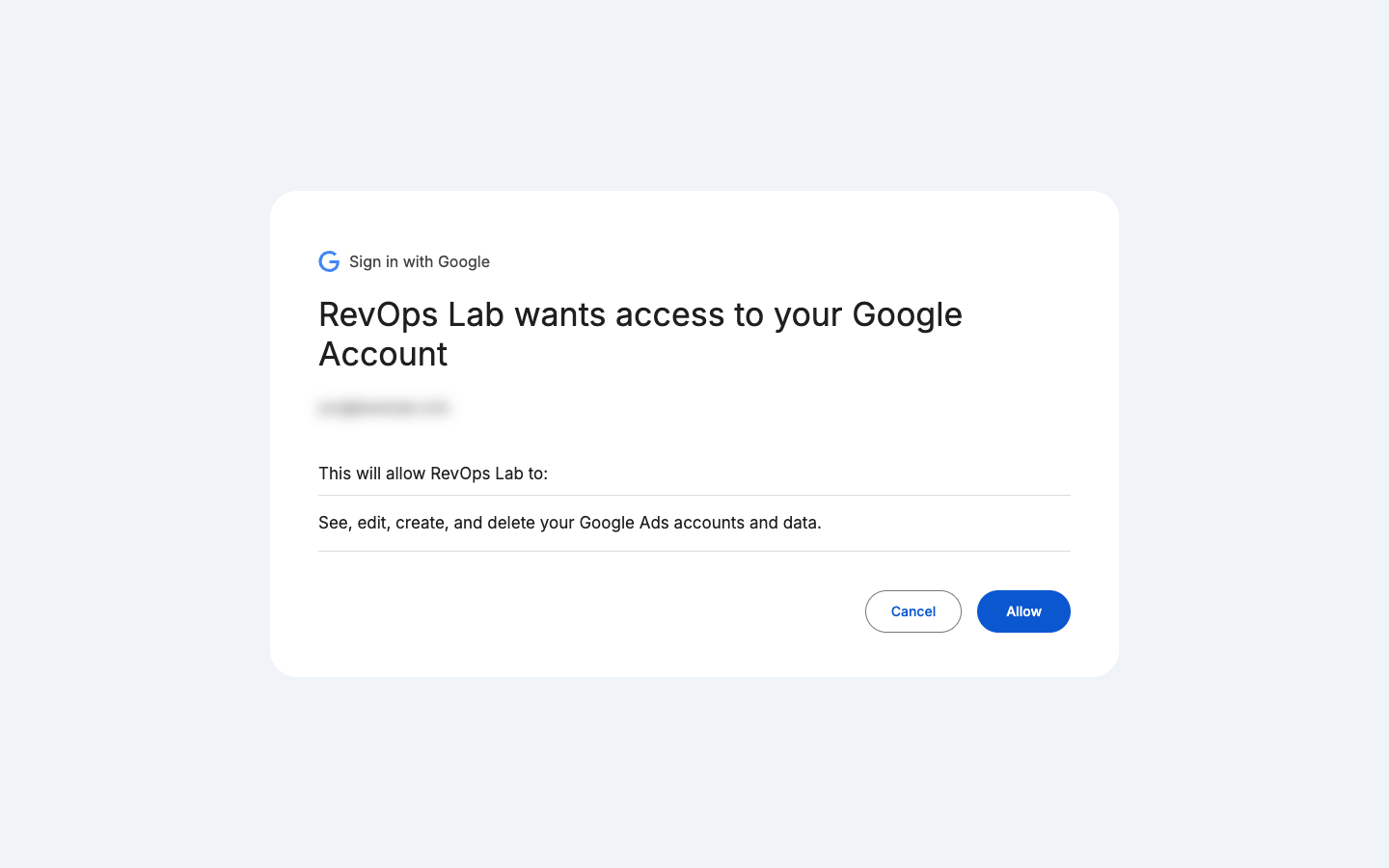
Sign in once
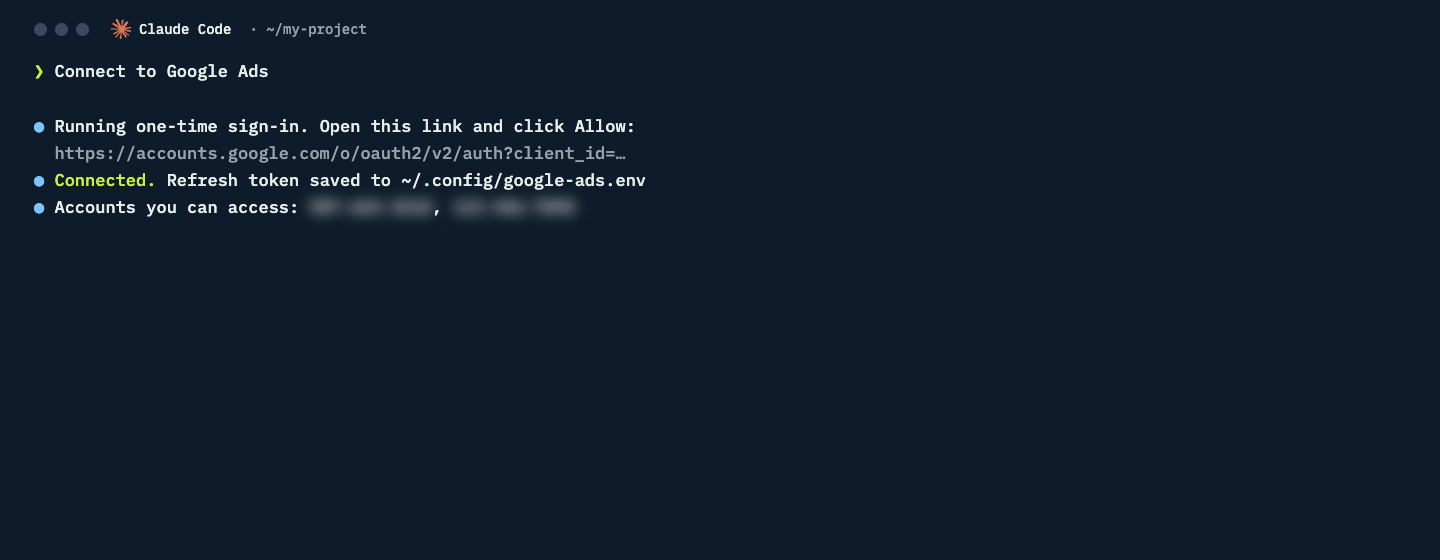
Ask Claude Code to connect to Google Ads. It runs a one-time sign-in: a browser window opens, you pick your account and click Allow. Claude saves a refresh token in the same private file, so you do not have to sign in again.
- 12
Ask in plain English
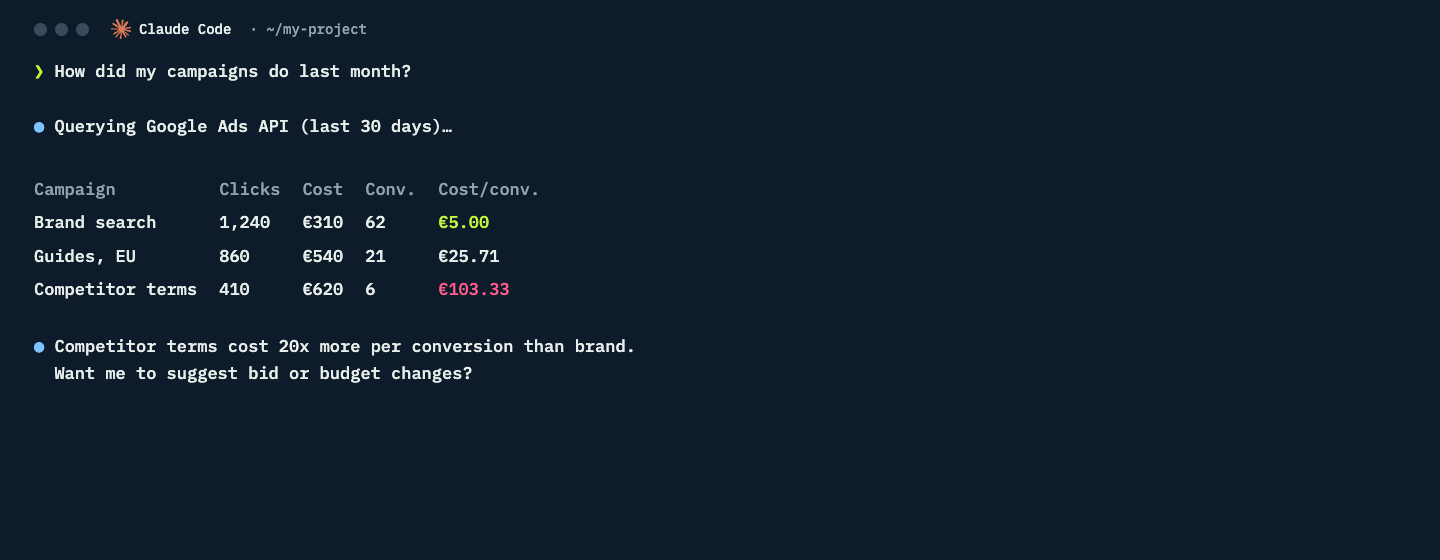
Now ask: "How did my campaigns do last month?" Claude queries the Google Ads API and answers in seconds. Ask it to suggest changes, and to wait for your go before it changes anything.
You are all set for campaign data
While your app is in Testing, the sign-in expires after 7 days. Ask Claude Code to sign in again when that happens, or publish the app (step C below) so it stays signed in.
Stop here if you only need campaign data. Continue only if you also want keyword ideas and search volumes.
Part 2 · keyword planning · Basic access
Unlock Keyword Planner in 6 more steps
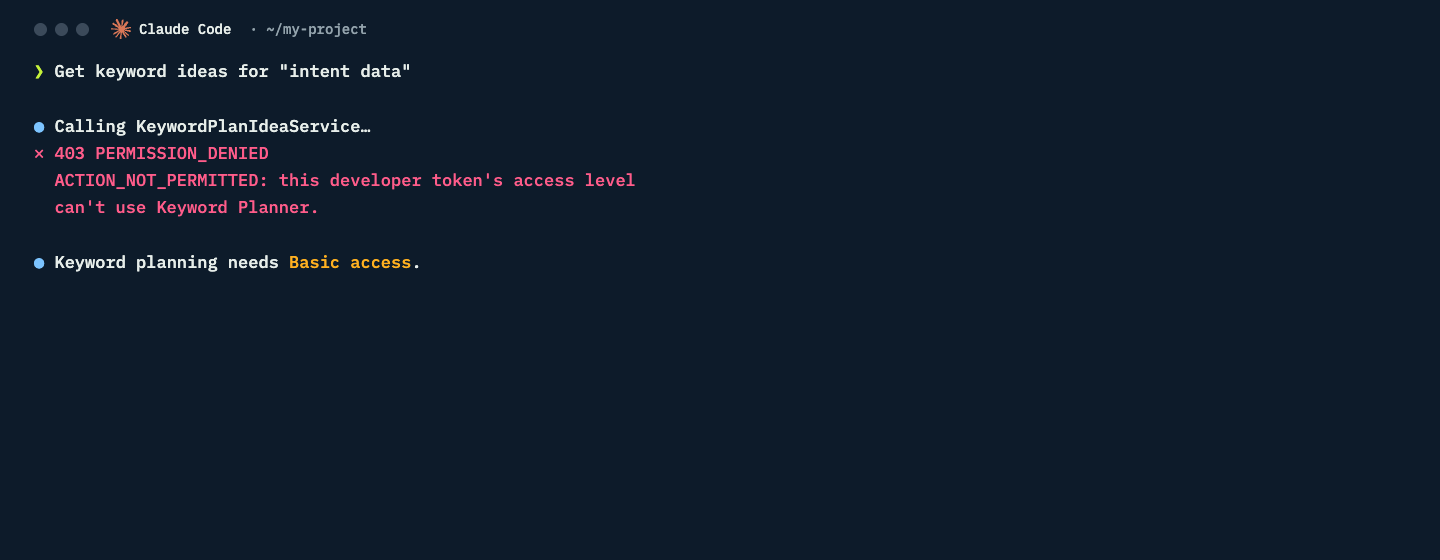
On Explorer, keyword requests fail with ACTION_NOT_PERMITTED. Keyword Planner needs Basic access, and Google only grants Basic access once the brand behind your Cloud project is verified. This is the route that worked.
- A
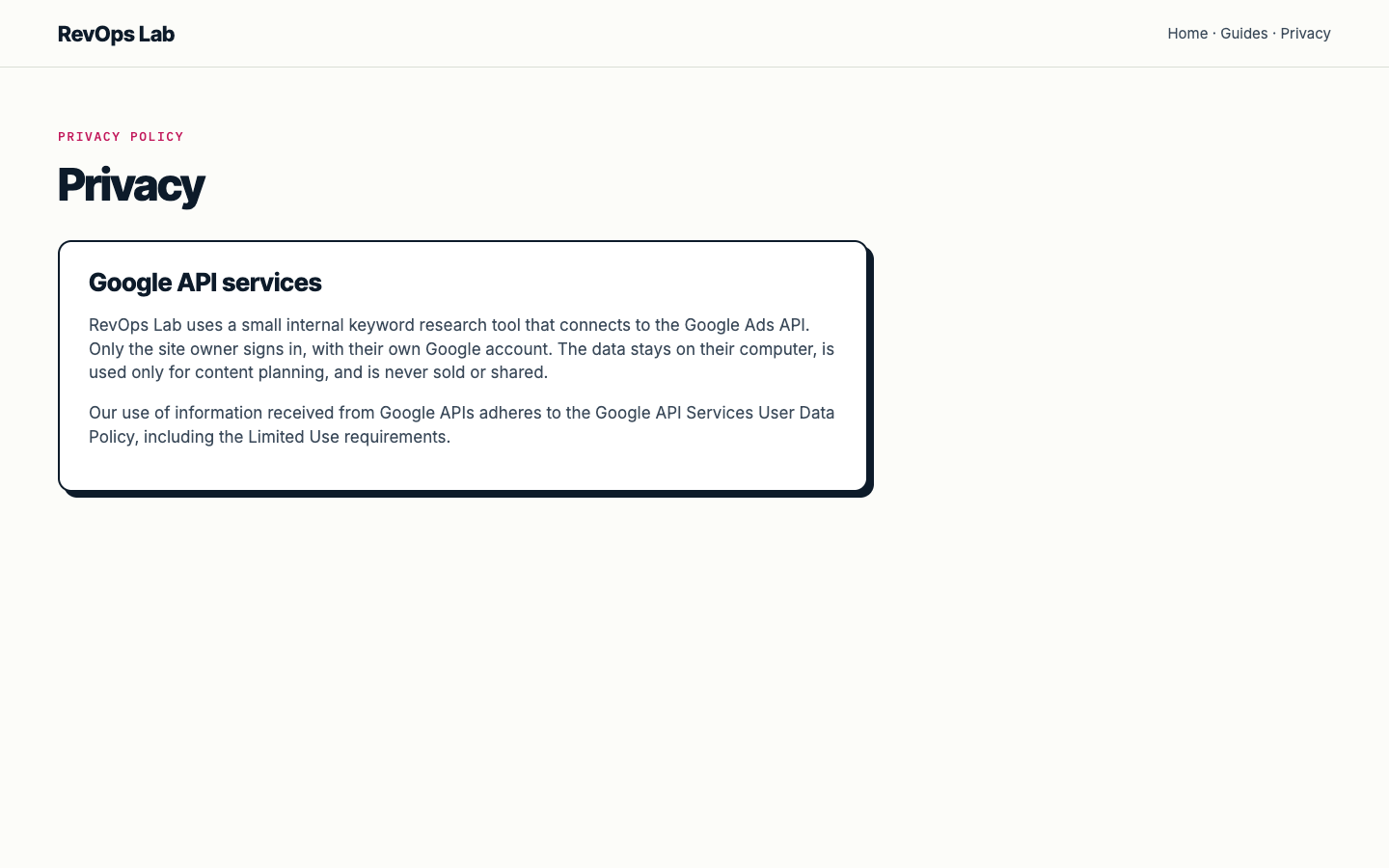
Add a Google API section to your privacy policy
Say how your tool uses Google data: only you sign in, the data stays private, it is never sold or shared, and your use follows the Google API Services User Data Policy, including the Limited Use requirements. Publish it on the same domain as your home page.
- B
Verify your domain in Search Console
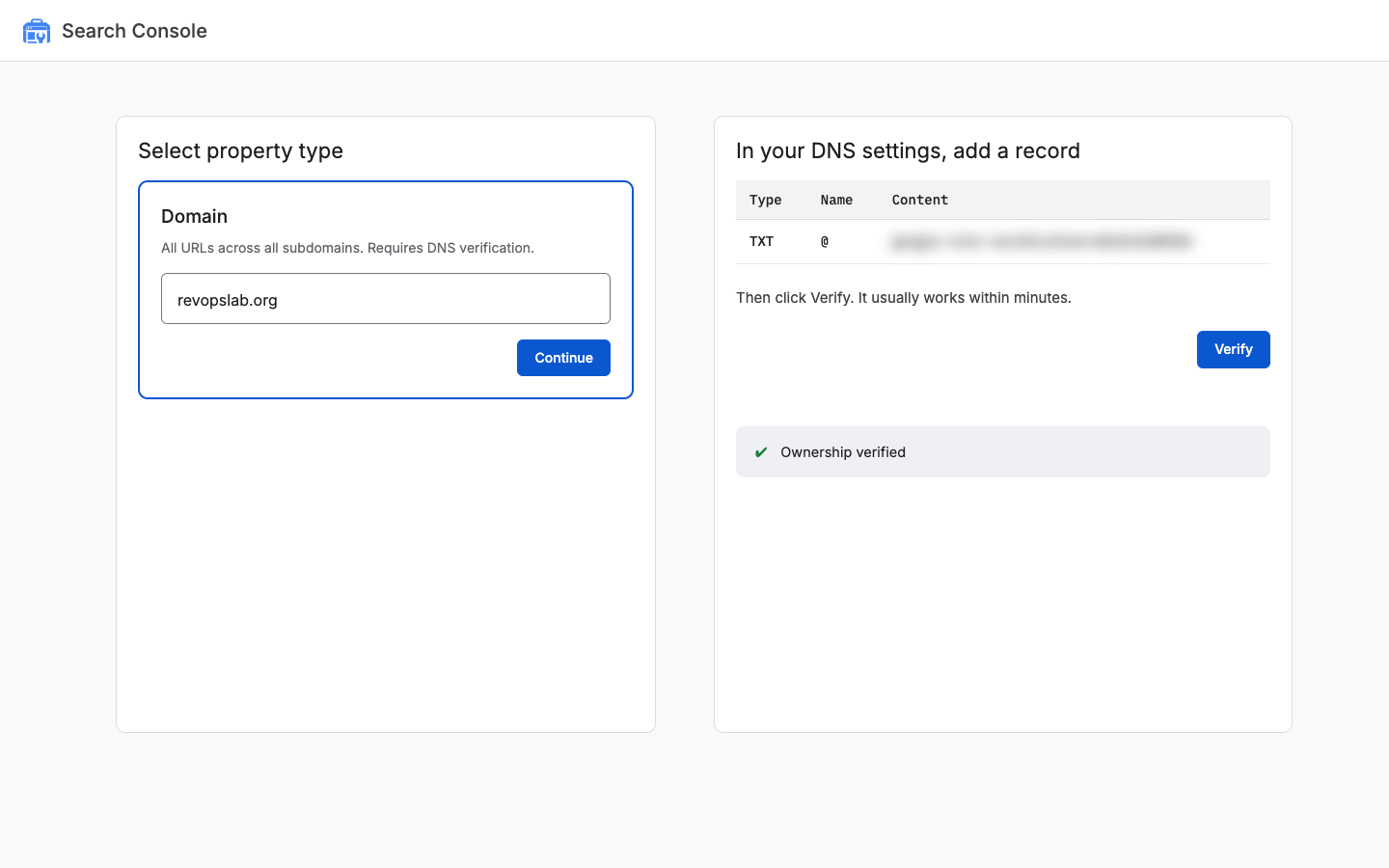
In Google Search Console, add a Domain property for your site. Copy the TXT record into your DNS settings (for example in Cloudflare: type TXT, name @), then click Verify. It usually passes within minutes.
- C
Publish the app
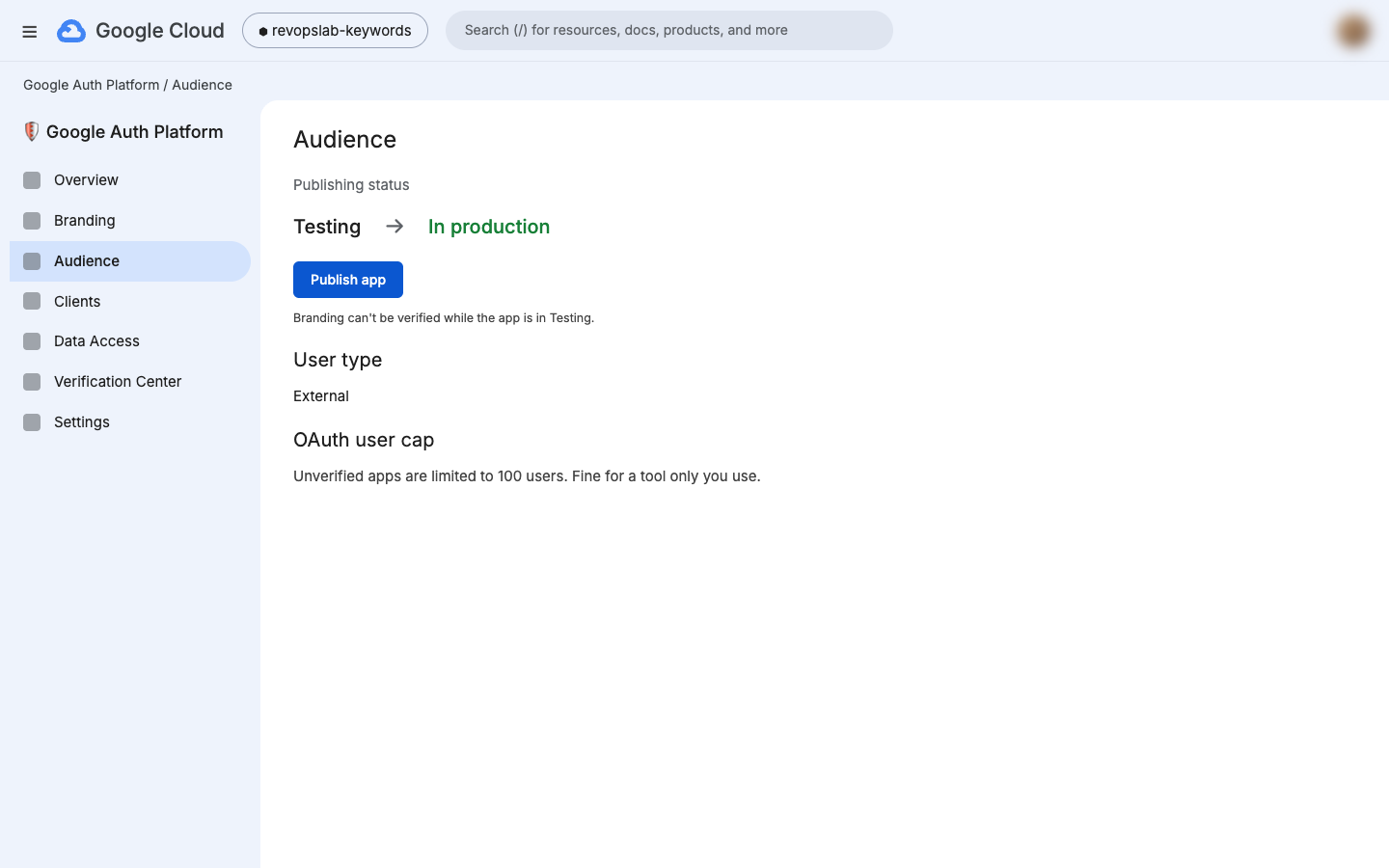
In Google Auth Platform, open Audience and click Publish app, so the status changes from Testing to In production. Branding cannot be verified while the app is in Testing. Publishing also stops your sign-in from expiring every 7 days.
- D
Verify and publish your branding
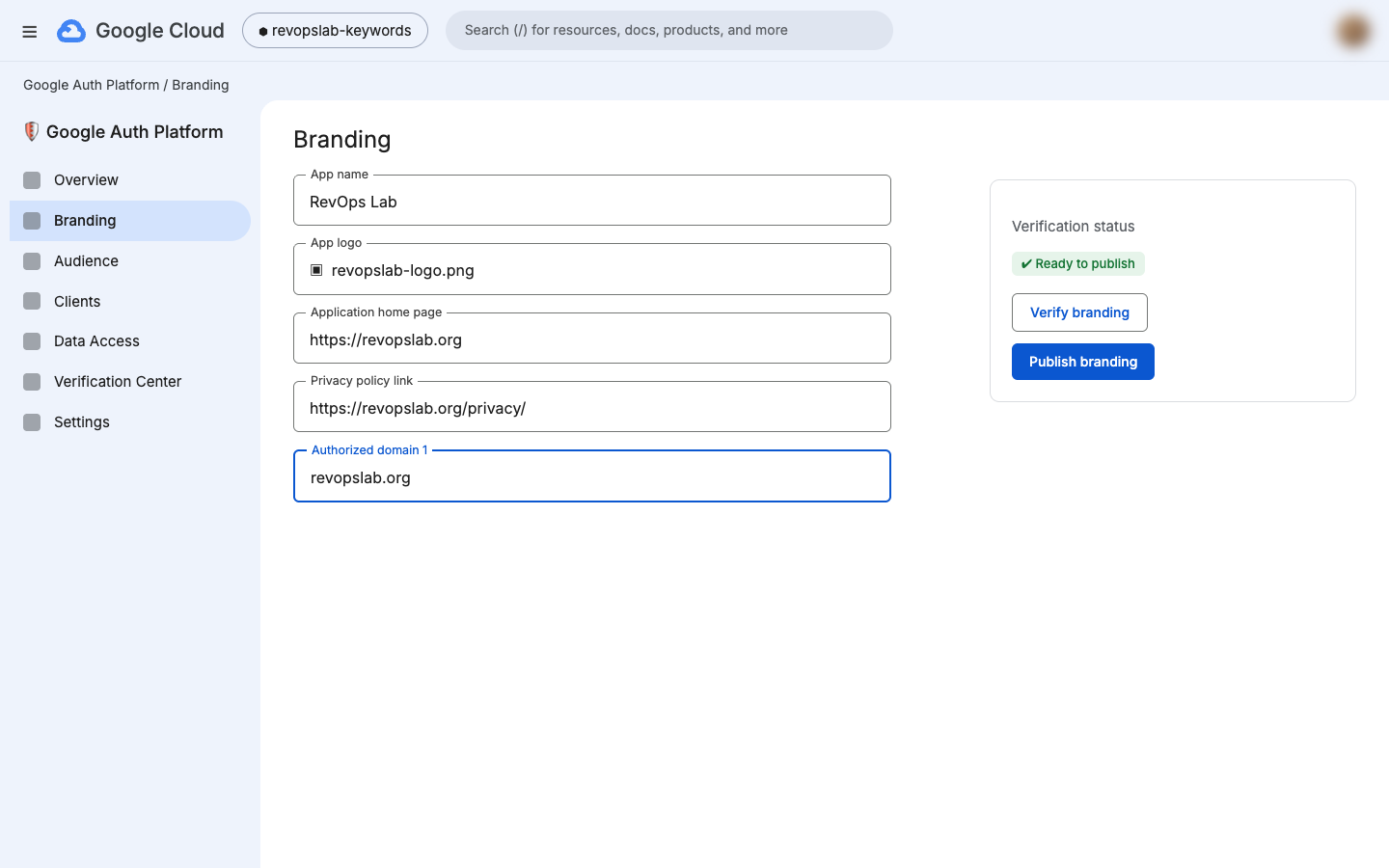
Open Branding. Add your app name, logo, home page, privacy policy link and your verified domain as an authorised domain. Click Verify branding. When the status says Ready to publish, click Publish branding.
- E
Apply for Basic access in Google Cloud
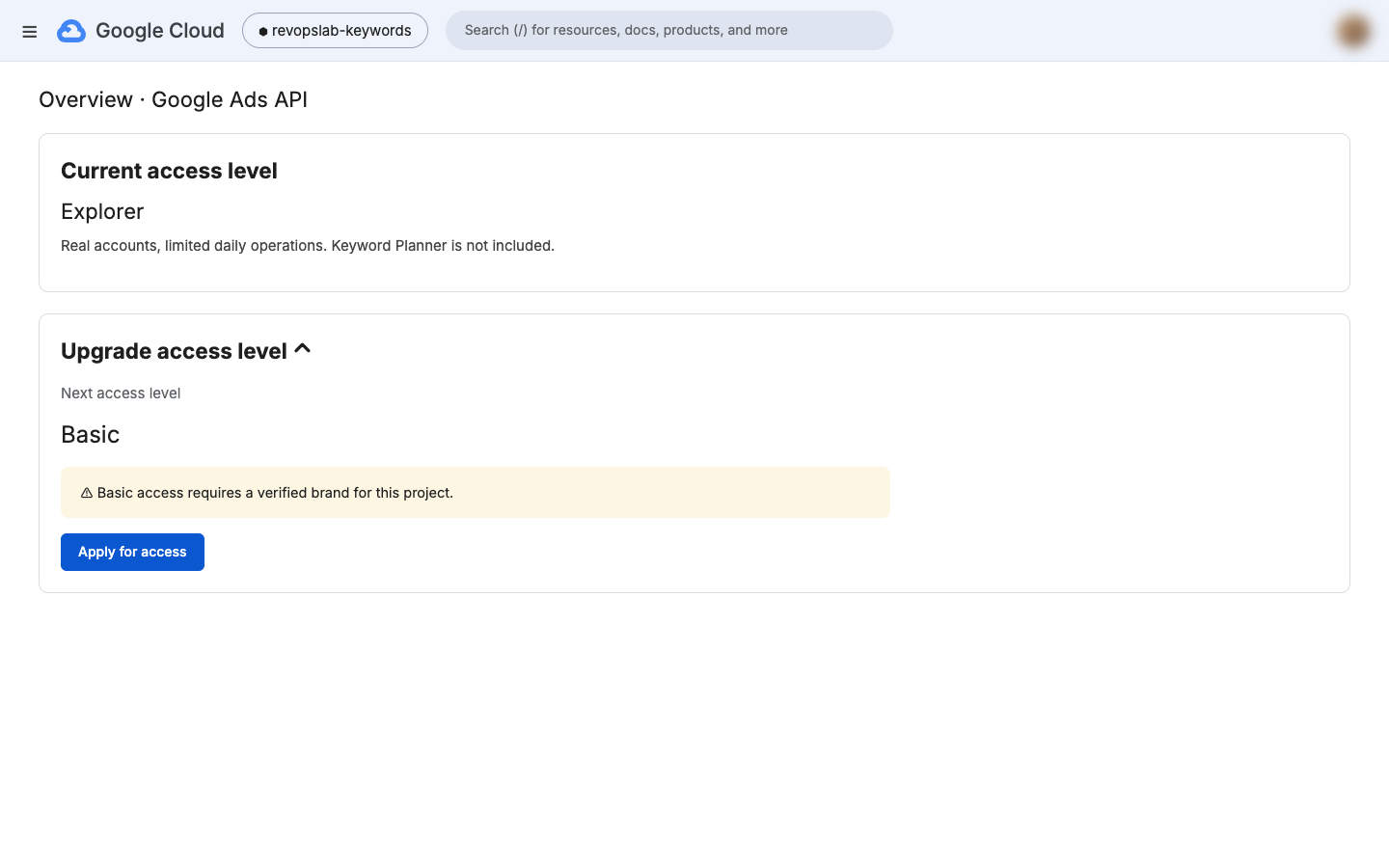
Open APIs & Services, then Enabled APIs & services, and click Google Ads API. Open Access levels, upgrade to Basic, fill in the form and submit. Describe your use honestly, for example internal keyword research for your own site.
- F
Sign in again and get keyword data
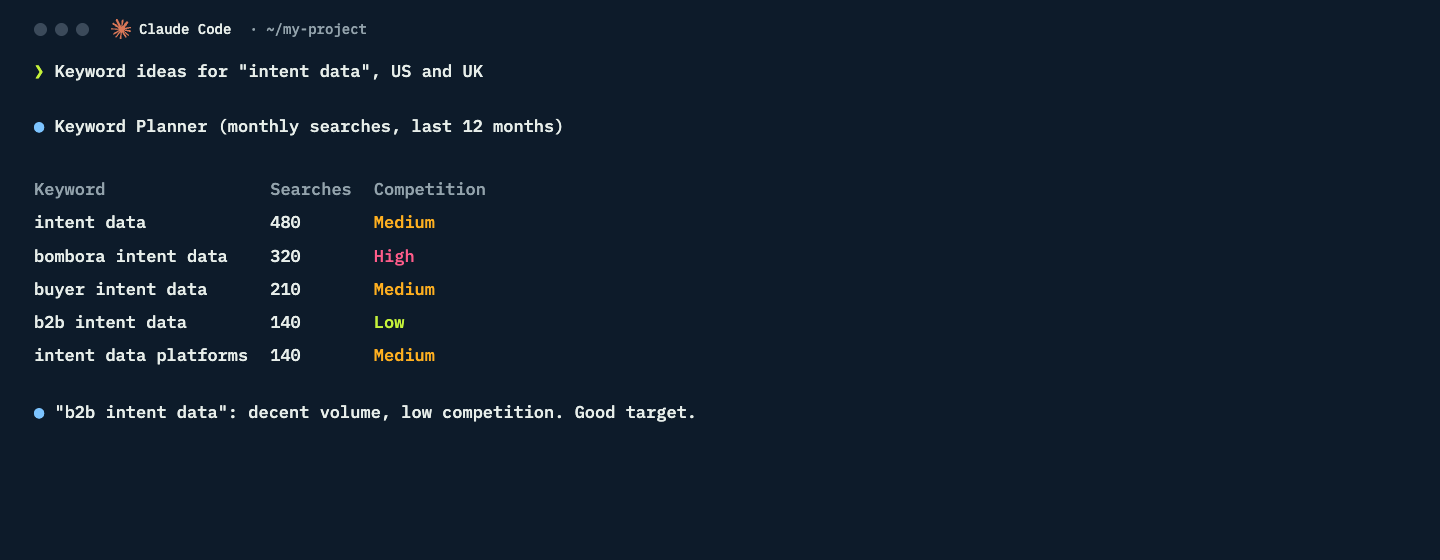
Approval can come within a day. Once the access level says Basic, ask Claude Code to sign in once more, then ask for keyword ideas. You get real monthly searches and competition from Keyword Planner.
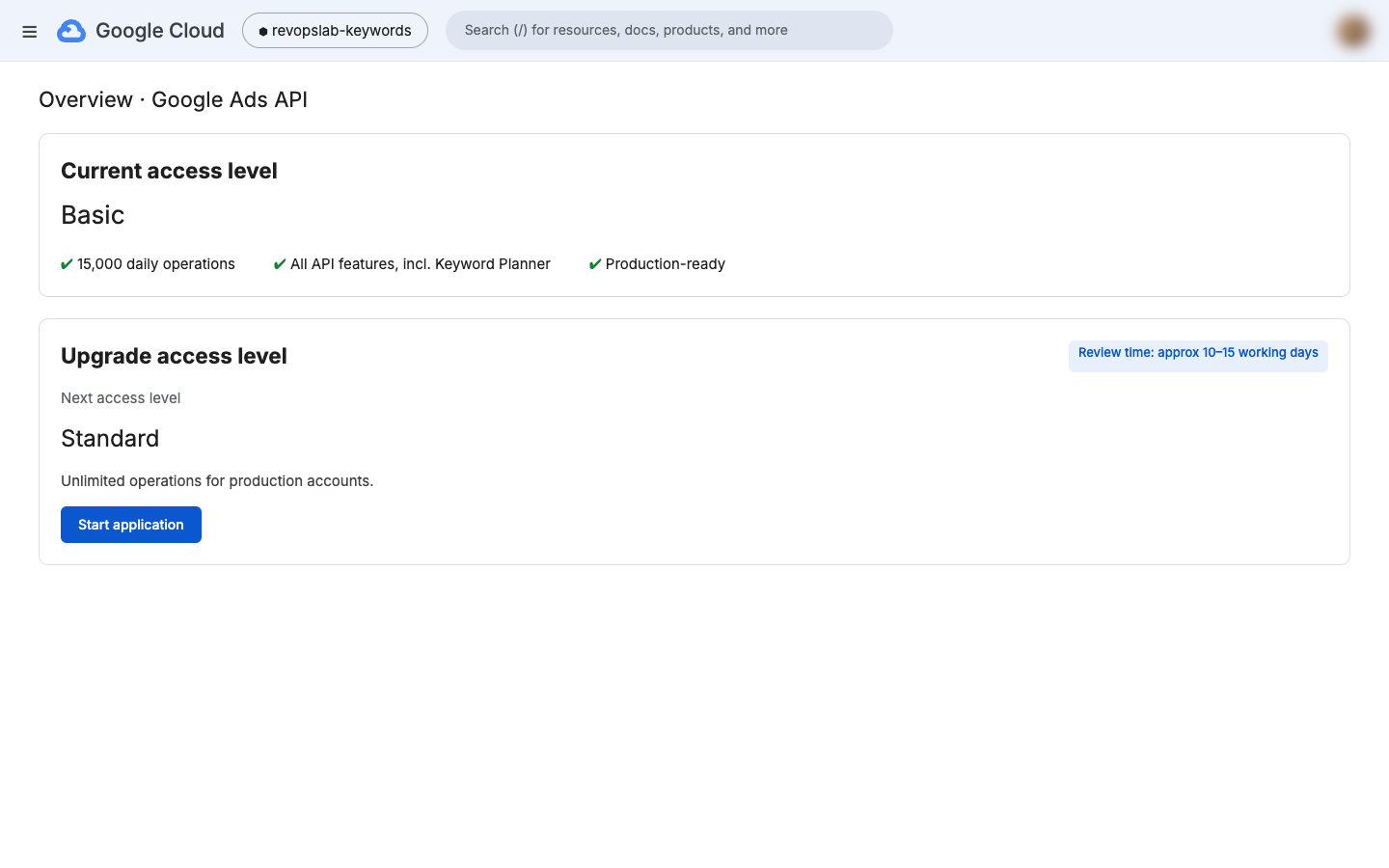
Need higher limits later? Standard access is the next level, with a review of about two to three weeks. Most solo setups never need it.
What goes wrong
- Using a normal ads account for the token. The developer token only exists in a manager account.
- Working in "My First Project". Google creates it for you. Select your own project before you enable the API or create the client.
- A token on Test account access. It only works with test accounts. Check that API Center says Explorer.
- Losing the client secret. Google shows it once. If you lose it, create a new client.
- Pasting keys into chat. Put them in the private file yourself. Chats get logged and shared.
- Applying before the brand is verified. The application is denied. Do steps A to D first.
- Staying in Testing mode. Your sign-in expires every 7 days and branding cannot be verified.
- Letting the agent change campaigns on its own. Ask for suggestions first and approve each change.
Questions people ask
Can Claude Code connect to Google Ads?
Yes. Claude Code can call the Google Ads API once you have a developer token from a Google Ads manager account, a Google Cloud project with the Google Ads API enabled, a Desktop OAuth client and one sign-in. Then you can ask about campaigns in plain English.
Is the Google Ads API free?
Yes. The Google Ads API has no usage fee. Google Cloud may ask you to start a free trial with a card to confirm your identity, but nothing is charged unless you upgrade to a paid account.
What is the difference between Explorer and Basic access?
Explorer access works with your real accounts for reporting and campaign management with a small daily limit. Basic access raises the limit to 15,000 operations a day and adds planning services such as Keyword Planner.
Why does Keyword Planner fail with ACTION_NOT_PERMITTED?
Your developer token is on Explorer access, which cannot use the KeywordPlanIdeaService. Apply for Basic access from the Google Ads API Access levels page in Google Cloud after verifying your brand.
Why was my Basic access application denied?
The most common reason is an unverified OAuth brand. Verify your domain in Search Console, add a Google API section to your privacy policy, publish the app, then verify and publish your branding before applying again.
Where should I store the Google Ads API keys?
In a private settings file outside your project folder that only your user can read. Never paste keys into chat, code or a repository, and never let an agent print them back.
Screens are rebuilt for this guide with placeholder data. Google Ads, Google Cloud and Search Console are trademarks of Google LLC; Claude is a trademark of Anthropic. RevOps Lab is not affiliated with or endorsed by either.
Related